



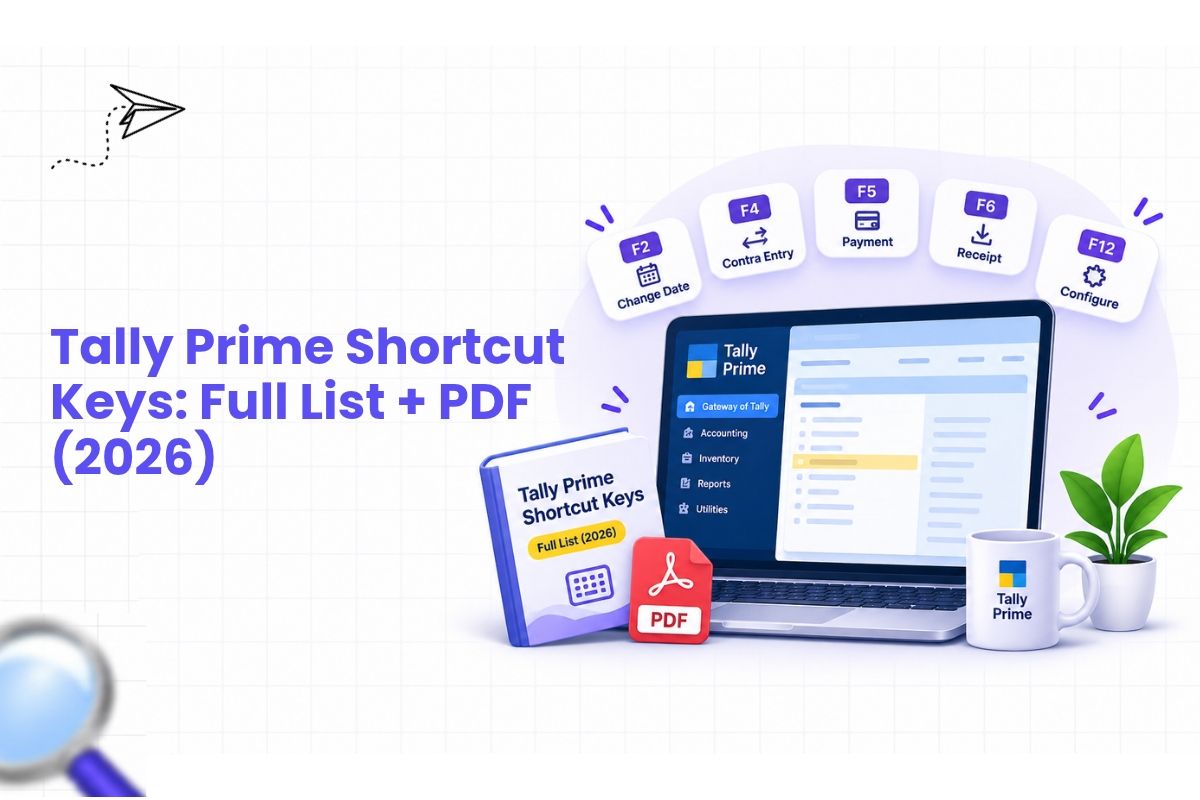
Picture a busy accountant at month-end. One hand is on the mouse. Her eyes jump between a bill, a ledger and a screen. Every click costs a second, and a hundred clicks cost minutes.
- Why Learn Tally Prime Shortcut Keys?
- Tally Prime Shortcut Keys List by Category
- Tally Prime vs Tally ERP 9: What Changed?
- Quick Recipes: Use Shortcut Keys for Daily Tasks
- Tally Prime Shortcut Keys in Hindi
- Download the Tally Prime Shortcut Keys PDF
- Tips to Learn Tally Prime Shortcut Keys Faster
- Common Mistakes to Avoid
- Conclusion
- FAQs About Tally Prime Shortcut Keys
Now picture the same person using the keyboard only. F8 opens a sales voucher. Ctrl+A saves it. Ctrl+P prints it. No hunting, no waiting.
That is the power of Tally Prime shortcut keys. This guide gives you a clear, task-wise list you can learn in small bites. You will also see how Prime differs from Tally.ERP 9, get a Hindi section, and find a printable PDF cheat sheet.


One quick note on accuracy. This list follows Tally’s own keyboard shortcuts page, which was last updated on 24 September 2026. That page also announces that TallyPrime 7.2 is live. Shortcuts can change between releases, so check your version before you teach them to your team.
Why Learn Tally Prime Shortcut Keys?
Shortcuts do three things for you. They save time, they cut errors, and they make you look like an expert.
Here is what you gain:


- Speed. Entering vouchers by keyboard is faster than moving between mouse and keys.
- Accuracy. You stay in the flow, so you skip fewer fields.
- Less strain. Fewer mouse movements mean less wrist fatigue over a long day.
- Confidence. You can open any voucher or report without hunting through menus.
The good news is that you do not need all of them. Learn about 25 keys well, and you will cover most daily work.
How the Alt and Ctrl pattern works
Tally follows a simple pattern. Look at any button on screen. Some letters have a single underline. Others have a double underline.


- Use Alt for single-underlined shortcuts.
- Use Ctrl for double-underlined shortcuts.
For example, Tally Help shows that Alt+K and then C opens the company creation screen. Once you spot this pattern, you can guess many shortcuts without memorising them.
There is one more thing to know. Tally Prime shortcut keys are predefined. Tally has said they cannot be customised or remapped. So the list below is the list you work with.
Tally Prime Shortcut Keys List by Category
We have grouped keys by what you are trying to do. Start with general navigation. Then move to vouchers, reports and GST.
General navigation shortcut keys
These work on almost every screen.
| Action | Shortcut |
|---|---|
| Go back or close the current screen | Esc |
| Accept or save a screen | Ctrl+A |
| Exit a screen or the application | Ctrl+Q |
| Quit the application | Alt+F4 |
| Open help for the current screen | Ctrl+F1 |
| Open the Help menu | F1 |
| Go To: open a report or create masters and vouchers | Alt+G |
| Switch to a different report | Ctrl+G |
| Open the company menu | Alt+K |
| Change the voucher date or report period | F2 |
| Change the period of the company | Alt+F2 |
| Switch to another open company | F3 |
| Open another company from a folder | Alt+F3 |
| Open Company Features | F11 |
| Open report configuration | F12 |
| Open or hide the calculator panel | Ctrl+N |
| Open the Notifications report | Ctrl+Alt+N |
| Move to the first or last line in a list | Home / End |
| Move to the first or last field | Ctrl+Home / Ctrl+End |
If you remember only five, remember Esc, Ctrl+A, Alt+G, F2 and F3.
Voucher shortcut keys: open any voucher
This is the most useful table in the guide. Function keys open vouchers directly.
| Voucher | Shortcut |
|---|---|
| Contra | F4 |
| Payment | F5 |
| Receipt | F6 |
| Journal | F7 |
| Sales | F8 |
| Purchase | F9 |
| Credit Note | Alt+F6 |
| Debit Note | Alt+F5 |
| Stock Journal | Alt+F7 |
| Delivery Note | Alt+F8 |
| Receipt Note | Alt+F9 |
| Sales Order | Ctrl+F8 |
| Purchase Order | Ctrl+F9 |
| Physical Stock | Ctrl+F7 |
| Payroll | Ctrl+F4 |
| Rejection In | Ctrl+F6 |
| Rejection Out | Ctrl+F5 |
Here is a simple memory trick. F4 to F9 follow the order of everyday work: contra, payment, receipt, journal, sales, purchase. Say it out loud a few times.
If you also run salaries, you will use the payroll voucher often. Our guide to the best payroll software in India is handy if you want to compare it with dedicated tools.
Shortcuts inside a voucher or master
Once a voucher is open, these keys help you work faster.
| Action | Shortcut |
|---|---|
| Go to the next field | Tab |
| Go to the previous field | Shift+Tab |
| Delete a voucher | Alt+D |
| Cancel a voucher | Alt+X |
| Remove an item or ledger line | Ctrl+D |
| Mark a voucher as post-dated | Ctrl+T |
| Mark a voucher as optional | Ctrl+L |
| Add more details for the current instance | Ctrl+I |
| Create a master on the fly | Alt+C |
| Retrieve narration for the same party | Alt+R |
| Retrieve narration from the previous voucher of the same type | Ctrl+R |
| Define stat adjustments | Alt+J |
| Open Related Reports | Ctrl+O |
| Open the GST Tax Analysis report | Alt+A |
| Insert the rupee symbol ₹ | Ctrl+4 |
| Copy and paste text in a field | Ctrl+C / Ctrl+V |
Sales vouchers are where most people spend their day. If your invoices must pass a GST check, read our explainer on whether a handwritten GST invoice is valid. It lists the mandatory fields.
Report shortcut keys
Reports are where you review your work. These keys save many clicks.
| Action | Shortcut |
|---|---|
| Drill down to a voucher or master | Enter |
| Insert a voucher | Alt+I |
| Duplicate a voucher | Alt+2 |
| Add a voucher | Alt+A |
| Delete an entry | Alt+D |
| Cancel a voucher | Alt+X |
| Remove a line from a report | Ctrl+R |
| Show the last hidden line again | Ctrl+U |
| Show all hidden lines | Alt+U |
| Select or deselect a line | Spacebar |
| Switch between detailed and condensed views | Alt+F1 |
| Add a column | Alt+C |
| Alter a column | Alt+A |
| Delete a column | Alt+D |
| Auto repeat columns | Alt+N |
| Filter report data | Ctrl+F |
| Change how values are viewed | Ctrl+B |
| Change the report view | Ctrl+H |
| View exceptions | Ctrl+J |
| Expand or collapse a section | Shift+Enter |
| Move to the next or previous period or report | + / – |
A word of caution. Some websites claim Ctrl+F does something else in Prime. Tally’s own page lists Ctrl+F as the filter shortcut in reports for TallyPrime 3.0 and later. Always trust the official page.
GST and banking shortcut keys
Tally also adds shortcuts inside GST and banking reports. A few are worth knowing.
| Action | Shortcut |
|---|---|
| Switch between Nature View and Return View in GSTR-1 and GSTR-3B | F5 |
| Validate party GSTIN/UIN in GSTR-1 | F6 |
| Validate HSN/SAC in GSTR-1 | F7 |
| Mark GSTR-1 and GSTR-3B as filed | F10 |
| Open the GST portal from GST reports | Alt+V |
| Record a stat adjustment from GST reports | Alt+J |
| Fetch party details using GSTIN/UIN | Alt+L |
| Reconcile transactions in Bank Reconciliation | F8 |
| Create vouchers from bank entries | F7 |
For e-invoicing and e-way bills, the screens use simple in-line buttons. Press S to send transactions, and X to export them for offline generation.
If GST billing is your main need, you may also want to look at our list of the best GST billing software in India.
Print, export and share shortcuts
Tally Prime has separate keys for the whole menu and for the current voucher or report.
| Action | Shortcut |
|---|---|
| Open the print menu | Alt+P |
| Print the current voucher or report | Ctrl+P |
| Open the export menu | Alt+E |
| Export the current voucher or report | Ctrl+E |
| Open the share menu | Alt+M |
| E-mail the current voucher or report | Ctrl+M |
| WhatsApp the current voucher or report | Ctrl+Alt+W |
| Open the import menu | Alt+O |
Tally Prime vs Tally ERP 9: What Changed?
If you moved from Tally.ERP 9, your fingers may still press the old keys. That is normal. Here are the biggest differences.
| Action | TallyPrime | Tally.ERP 9 |
|---|---|---|
| Open help | Ctrl+F1 | Alt+H |
| Print current voucher or report | Ctrl+P | Alt+P |
| Export current voucher or report | Ctrl+E | Alt+E |
| E-mail current voucher or report | Ctrl+M | Alt+M |
| Credit Note | Alt+F6 | Ctrl+F8 |
| Debit Note | Alt+F5 | Ctrl+F9 |
| Remove a line in a report | Ctrl+R | Alt+R |
| Filter report data | Ctrl+F | Alt+F12 |
| Select display language | Ctrl+K | Alt+G |
The filter key also depends on your release. TallyPrime 3.0 and later use Ctrl+F. Version 2.1 and earlier use Alt+F12.
Two more updates matter if you use newer versions. In TallyPrime 7.0 and above, the filter details shortcut is Ctrl+Alt+F. In 6.2 and below, it was Alt+F. To check which version you have, open the About report from the Help menu.
Quick Recipes: Use Shortcut Keys for Daily Tasks
Lists are useful, but real work looks like tasks. Try these.
Record a sale
- Press F8 to open the sales voucher.
- Enter the party, items and rates.
- Press Ctrl+A to save.
- Press Ctrl+P to print.
Record a supplier payment
- Press F5 for the payment voucher.
- Pick the bank or cash ledger and the party.
- Add narration and amount.
- Press Ctrl+A.
Fix a wrong entry
- Press Alt+G and open the Day Book.
- Move to the voucher and press Enter.
- Edit the details.
- Press Ctrl+A to save the change.
Send an invoice to a customer
- Press Ctrl+M to e-mail it.
- Press Ctrl+Alt+W to send it on WhatsApp.
Switch company or date
- Press F3 to jump to another open company.
- Press F2 to change the date.
Selling online as well? You can feed those sales into Tally. See our guide to the best ecommerce platforms in India for ideas on stores that connect well with accounting tools. Receipts from online payments also flow into your books, so a look at the top payment gateways in India helps too.
Tally Prime Shortcut Keys in Hindi
Many accountants in India work in Hindi. Here is a short cheat sheet in simple language.
- वाउचर खोलने के लिए F4 से F9 तक की कीज़ याद रखें। F5 पेमेंट, F6 रसीद, F8 सेल्स और F9 पर्चेज़ है।
- एंट्री सेव करने के लिए Ctrl+A दबाएँ।
- पीछे जाने या स्क्रीन बंद करने के लिए Esc दबाएँ।
- तारीख बदलने के लिए F2 दबाएँ।
- कंपनी बदलने के लिए F3 का इस्तेमाल करें।
- क्रेडिट नोट के लिए Alt+F6 और डेबिट नोट के लिए Alt+F5 दबाएँ।
- प्रिंट निकालने के लिए Ctrl+P और एक्सपोर्ट के लिए Ctrl+E दबाएँ।
Tally Help also lets you use Tally in your preferred language. Press Ctrl+K to choose the display language.
Download the Tally Prime Shortcut Keys PDF
A printed cheat sheet beats scrolling a web page. Stick it next to your monitor, and you will learn the keys faster.
Our PDF cheat sheet includes:
- All voucher shortcut keys on one page
- General navigation and report keys
- A Prime vs ERP 9 comparison
- GST and banking shortcuts
- A blank row to add your own notes
The PDF follows the same source as this article. If Tally changes a key in a later release, we will update it. For the latest list at any time, open Tally’s official TallyHelp page.
Tips to Learn Tally Prime Shortcut Keys Faster
Do not try to learn everything at once. Use this plan instead.
- Week 1: Learn Esc, Ctrl+A, F2, F3, Alt+G and the F4 to F9 voucher keys.
- Week 2: Add Ctrl+P, Ctrl+E, Ctrl+M and Alt+D for daily output and corrections.
- Week 3: Add report keys such as Enter, Ctrl+H, Ctrl+B and Alt+F1.
- Week 4: Add GST keys such as F5, F6 and F7 in GST reports.
A few more habits help:
- Print the PDF and keep it visible.
- Do one real task a day with no mouse.
- Ask a colleague to quiz you for five minutes a week.
- Look at the underlined letters on buttons. They are free hints.
As your volume grows, you may want tools that do more than shortcuts can. Our list of the best accounting software in India for small business can help you compare options.
Common Mistakes to Avoid
Even experienced users slip. Watch for these.
- Using ERP 9 keys in Prime. Ctrl+P prints in Prime, but Alt+P was the old key. Alt+P now opens the print menu.
- Trusting outdated lists. Many blogs mix old and new keys. Compare against Tally’s official page.
- Pressing Alt+D by accident. In a voucher or report, it deletes. Pause before you press it.
- Skipping the version check. Some keys change by release, such as the filter shortcut.
- Memorising too many keys. Focus on the ones you use every day.
Conclusion
Tally Prime shortcut keys are one of the cheapest ways to boost your speed. You do not need a course. You need a short list, a little practice and a habit of using the keyboard.
To recap:
- Start with Esc, Ctrl+A, Alt+G, F2 and F3.
- Use F4 to F9 to open the main vouchers.
- Learn the Alt and Ctrl underline pattern.
- Remember that Prime and ERP 9 differ on several keys.
- Check your version before you teach shortcuts to others.
- Verify keys on Tally’s official page when in doubt.
Your next step is simple. Download the PDF, print it and use five new shortcuts today. Share it with your team, and watch month-end get a little easier.
FAQs About Tally Prime Shortcut Keys
Start with Esc to go back, Ctrl+A to save, and Alt+G to open reports or create masters. Add F2 for date, F3 for company and F4 to F9 for vouchers. These cover most daily work.
Press Alt+F6 for a credit note and Alt+F5 for a debit note. In Tally.ERP 9, these were Ctrl+F8 and Ctrl+F9.
Press F3 to switch to another open company. Press Alt+F3 to select and open a company from a folder or data path.
Many are the same, such as Esc, Ctrl+A and the F4 to F9 voucher keys. But several differ. Help is Ctrl+F1 in Prime, print is Ctrl+P, and credit and debit notes use new keys.
No. Tally has said the shortcut keys are predefined and cannot be customised or remapped. You can, however, use the Go To feature (Alt+G) to reach almost any report or screen quickly.
Keto Diet, [url=http://bgmhero.awooltech.com/bbs/board.php?bo_table=free&wr_id=4775772]http://bgmhero.awooltech.com/bbs/board.php?bo_table=free&wr_id=4775772[/url] – The Low-Carb High-Fat Diet is a popular nutrition plan aimed at promoting weight loss and improving health. This regimen focuses on limiting carbohydrates and increasing fats. By adapting, the body is prompted to enter a state of ketosis, where it utilizes fat for fuel instead of carbs. Many people report notable improvements in their energy levels and mental clarity while on the Keto Diet. It may also help reduce hunger and cravings, making it easier to stick to. Additionally, studies suggest that the diet can improve various health markers, such as insulin levels and cholesterol profiles.However, it’s important to consult a healthcare professional before starting any new diet plan, including the Keto Diet. Personalization is key; what works for one person may not work for another. Overall, if you’re seeking a alternative approach to weight loss, the Keto Diet might be worth considering for its potential benefits.